Global Fields, Global Variables, and Global Tables in FileMaker
Introduction
As FileMaker applications scale, so do their demands on performance, maintainability, and deployment efficiency. One of the most effective architectural strategies to handle this growth is data and UX separation --- splitting your FileMaker solution into multiple files, typically a back-end data file and a front-end user interface file. This technique, which has long been practiced in software engineering, is becoming increasingly relevant for professional FileMaker developers. In this article, we examine the key advantages of this approach, supported by container separation strategies and practical implementation tips.
As a developer who has worked with large-scale FileMaker solutions and experienced the complexity of 100 GB backups and millions of container documents, I wanted to write this article as a helpful guide on how you can better manage the design of your FileMaker solutions to improve deployment and scalability.
Why Separate the Data and UX in FileMaker?
Separation of concerns is a foundational principle in software design. By isolating the data (schema and records) from the user interface (layouts, scripts, navigation), developers can enjoy a cleaner, more modular, and future-proof FileMaker solution. We see this as a common practice in applications today, especially web-based apps, where there is a separation between Frontend and Backend technologies. While FileMaker was designed to be a self-managed package where developers could rely on one technology for both the Frontend and Backend, when this scales to larger applications, we start to see some of the challenges.
Here are some core advantages of splitting the data:
1. Faster Backups and Restores
A smaller UI file without live data allows for faster backups. Since the interface file changes infrequently, it rarely needs to be backed up alongside the data file, significantly reducing downtime during backup windows. You're primarily focusing on backing up the data files, which can slim down your overall backup footprint.
2. Safer Upgrades and Patches
With data and UX split, developers can update UI features, scripts, and layouts in the front-end file without risking the integrity of the production data. This enables easier version control and staging. For example, let's say a minor bug is found in the UI where some fields should utilize a script trigger to clean up the data that is entered in the field using the OnObjectSave script trigger. Instead of performing a complete data migration, you can replace the UI file on the hosted server, assuming no database table changes are required for this fix. This makes hotfixes and patches a lot quicker.
3. Better Development Workflow
Team-based development becomes more manageable when UI and data files are separate. Designers and front-end developers can iterate independently from the database architects, working on tables and relationships.
4. Improved Security
Access can be controlled more granularly. For example, end users may only have access to the interface file on a read/write level, while administrators or integration scripts access the back-end data file directly. This minimizes the attack surface if someone manages to gain access to a Full-Access role for the UI file. However, you must use unique accounts for both the data and UI files; otherwise, this benefit is ineffective.
5. Optimized File Size Management
Large files are prone to corruption and slowdowns. Splitting your solution prevents your UI from bloating due to data accumulation, resulting in improved stability and performance. This can also improve turnaround time on recoveries if you only need to recover the UI file.
6. Simplified Data Migration
Claris's Data Migration Tool is more efficient when the data and UI are in separate files. Developers can migrate user data independently from layout and script changes.
Implementing Data and UX Separation: Best Practices
Identify Large Tables
Start by determining which tables are responsible for the majority of your file size. You can use the "Truncate Table" method to estimate the data weight of each table. Deleting all records (after backing up) and observing file size changes can help you identify the most data-intensive tables. Looking at record counts may not be a reliable indicator of your most significant file size contributor, which is why I prefer this approach.
Create a Dedicated Data File
Duplicate the original solution and strip it of scripts, layouts, value lists, and UI logic. Retain only the essential tables and relationships. This becomes your core data file. Be sure to preserve field names and internal IDs to avoid reference errors when re-linking.
Link via External Data Sources
In the interface file, define external data sources pointing to the new data file. Update your graph to point the table occurrences to the external versions. Ensure that relationships and table occurrences stay intact during this process.
Reassign Scripts and Layouts
Review scripts that reference now-external tables. Remap script steps, such as "Go to Layout," "Perform Find," or "New Record," to the appropriate table occurrences. Double-check layout base tables and object bindings to ensure functionality remains intact.
Test Field Mapping and Dependencies
Consistency is crucial. Use FileMaker's Database Design Report (DDR) to identify broken references or field mismatches. Validate calculated fields, summaries, and scripts that previously referenced local tables. Ensure global fields or variables are retained or reassigned appropriately.
Alternatively, use a program like BaseElements or FMPerception to help review your DDRs in a clean desktop interface.
Harden the Data File
Use a "Restricted Access" landing layout in the data file with a simple UI and limited navigation. Set it as the default layout in File Options. Hide or remove scripts, toolbars, and menu items. Limit account access to full-access developers or internal scripts only.
Version Control and Deployment
Maintain separate versioning for UI and data files. When deploying updates, migrate the front-end independently. For production upgrades, migrate data using DMT, handling each file separately. Always test in a staging environment before deploying to production.
Document the Architecture
Maintain internal documentation that outlines the connection logic, external data source names, table mappings, and any special script dependencies. This becomes essential for onboarding, troubleshooting, or scaling the solution.
What About External SQL Backends?
Another approach is to offload data entirely to an external SQL source, such as MySQL, PostgreSQL, or Microsoft SQL Server. FileMaker supports ESS (External SQL Sources), allowing direct interaction with SQL tables.
Benefits include:
- Scalability: SQL databases handle large datasets more efficiently.
- Integration: Easier to connect with external systems or business intelligence tools.
- Flexibility: Data can be managed, queried, and maintained by specialized database tools.
However, you'll lose certain native FileMaker functionalities, such as complete scripting control or schema-based automation, unless you supplement them with sync routines or hybrid designs.
Container Separation Strategies
Containers, especially when used to store media files, signatures, PDFs, and more, can cause significant bloat in your FileMaker files. I have personally worked with two different solutions that handled millions of container files, ranging from 100GB to 1TB in total storage, on their FM Servers. This impacted backup speeds and required a massive amount of storage to be allocated and scaled frequently. Alternative container storage is a great way to mitigate scale creep when working with lots of sales and documents.
Here are some alternative ways to store your container data:
1. External Storage
Configure containers to use external storage (secure or open) to keep them outside the main file. This improves performance and reduces file size.
2. Container-Only File
Store all container-heavy tables (e.g., documents, media) in a separate FileMaker file. This makes it easier to manage backups, migrations, and security for assets.
3. Integration with Cloud Storage APIs
For advanced architectures, consider integrating with cloud storage services like AWS S3 or Dropbox using the FileMaker Data API and Insert from URL. This keeps containers out of your FileMaker environment entirely.
ConclusionGlobal Fields, Global Variables, and Global Tables
Introduction
As you build more sophisticated FileMaker applications, understanding the right tool for managing temporary or persistent values becomes essential. FileMaker offers several options --- global fields, global variables, and global tables --- each with distinct behaviors and ideal use cases. Misusing them can lead to unpredictable results, especially in multi-user environments.
In this article, we break down the differences, provide real-world examples, and help you make informed decisions about when and how to use each.
What Are Global Fields?

Global fields are fields with storage set to "Global" under Field Options. Their contents are:
- Session-specific: Each user session sees and edits its own version.
- Resettable: They reset to the last saved state upon opening the file.
- Shared across layouts: Values are accessible from any layout or script.
When to Use Global Fields
- Storing filter selections across multiple layouts
- Staging values for search criteria
- Temporary user session values (e.g., active user ID, search date range)
- UI control elements (e.g., toggles, flags, active tab names)
Important Notes
- Global fields only retain their values if edited in single-user mode or during scripted deployments.
- For hosted files, values entered in a global field by a user are not visible to others.
What Are Variables?

Variables are memory-resident values defined using the Set Variable script step. They come in two forms:
1. Local Variables ($localVar)
- Exist only within the current script or calculation context
- Deleted when the script ends
2. Global Variables ($$globalVar)
- Persist across all scripts, layouts, and contexts within the user session
- Deleted when the file is closed or the session ends
When to Use Variables
- Local: Temporary calculations inside scripts
- Global: Session-wide preferences, IDs, temporary sort orders
Advantages
- No need for schema changes
- Super fast access
- Ideal for scripting and UI interactions
Limitations
- Invisible to users (not shown on layouts unless explicitly placed in merge text fields)
- Not saved with the file
- Lost on logout or crash
What Are Global Tables?
Press enter or click to view image in full size

A "global table" is a developer-created table meant to store global-like data using a one-record-only design. It usually includes fields like:
- Current user's full name
- Environment flags (e.g., isAdmin, hasReportAccess, expandedLayouts)
- Global preferences
- UI settings or constants
When to Use a Global Table
- You need values that persist across sessions and users
- You need to store editable session info per user
- You want values visible on layouts or in conditional formatting
Implementation Tips
- Restrict the table to one record only (can be enforced via validation or script on open)
- Load values into the global fields or global variables during startup scripts
- Lock down access if using it for session logic to prevent user edits
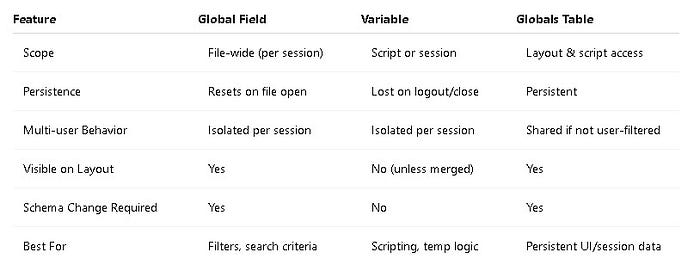
Comparison Table: Global Fields vs. Variables vs. Global Table
Press enter or click to view image in full size
Real-World Example Scenarios
Global Fields
- Search Filters Across Layouts: Utilize global fields to enable users to enter filter values once and apply them across multiple layouts. Each user's values won't interfere with others.
- User Login Timestamp Logging: Capture login time per session using a global timestamp field --- useful for internal audits without altering shared records.
Variables
- Scripted Workflow Flags: Utilize global variables to track elements such as user roles, sort order, or mode flags across scripts without requiring additional fields in the schema.
- Modal Context Transfer: Pass multiple values between modal layouts using local or global variables, rather than creating temporary fields.
Globals Tables
- Theme Toggles or Admin Controls: Use a global table to persist settings, such as "Reports Access" or "Admin View Enabled," across sessions, or even allow toggling via buttons visible on the interface.
- App-Wide Configurations: Store constants such as system name, branding colors, or environment type (development, staging, production) in a single, global record accessible across the system.
Global Fields and Variables in Server-Side Scripts
When working with FileMaker Server-side scripts --- whether triggered by scheduled jobs or using Perform Script on Server (PSoS) --- it's crucial to understand how global fields and variables behave differently compared to client-side sessions.
Global Fields in Server-Side Scripts
- Global fields can be used in server-side scripts, but their values must be set within the script itself. Server sessions do not retain user-edited global values.
- Values stored in global fields during server-side script execution are isolated to that script session.
- Global fields used for filtering or staging data must be explicitly set and cleared in the script.
Best Practices:
- Always initialize global fields at the beginning of a server-side script.
- Avoid relying on pre-set values, as the server will not load global field values saved by a user session.
Variables in Server-Side Scripts
- Variables, both local and global, are fully supported in server-side scripts.
- They behave identically to client-side execution: local variables exist only within the script, and global variables persist through the duration of the server session.
Best Practices:
- Use variables for dynamic logic, counters, and managing state between script steps, as well as JSON structures.
- Remember that global variables ( $$ ) will not persist beyond the server script's session. They are destroyed when the script completes.
Common Pitfalls to Avoid
- Assuming global fields retain values across multiple server-side scripts, they don't.
- Failing to set up the necessary global fields at the beginning of the script results in missing or default values.
- Using global fields in server-side filters without populating them results in empty or incorrect finds.
By understanding these nuances, developers can confidently build reliable server-side workflows that behave consistently and deliver accurate results.
Conclusion
Choosing between global fields, variables, and global tables depends on your specific needs --- persistence, scope, visibility, and user isolation. FileMaker provides flexible tools, but with flexibility comes responsibility. Use this guide to select the best storage strategy for your application's goals.
FAQs
-
Can global fields be used in relationships? Yes, they're excellent for dynamic filters or portal selectors. I like to use them for multi-keys to simplify complex relationships on the Table Relationship Graph.
-
Can you combine all three approaches? Absolutely. In complex systems, they often complement each other. Analyze your desired feature and determine which type of global is most applicable to it. This gets easier the more you develop.
-
Are global fields saved on server-hosted files? Only if set in single-user mode or during scripted server-side operations. If you set global fields with values and host the open file, it will retain those global values. This is an outdated practice, though. It is better to manage default values through scripting.
5. How do I enforce one record in a global table? Use a startup script to check and delete excess records or apply validation rules. Use the file script trigger to open the first window and verify that the global table has a single record and is initialized.
Separating data, user experience, and containers in FileMaker isn't just a clever design choice; it's a smart investment in the longevity, scalability, and security of your application. As your app grows, this modular architecture ensures that each component --- data, UI, and media --- can evolve independently. Whether you're a solo developer or managing an enterprise solution, adopting this approach will lead to better performance, faster deployments, and easier maintenance.